
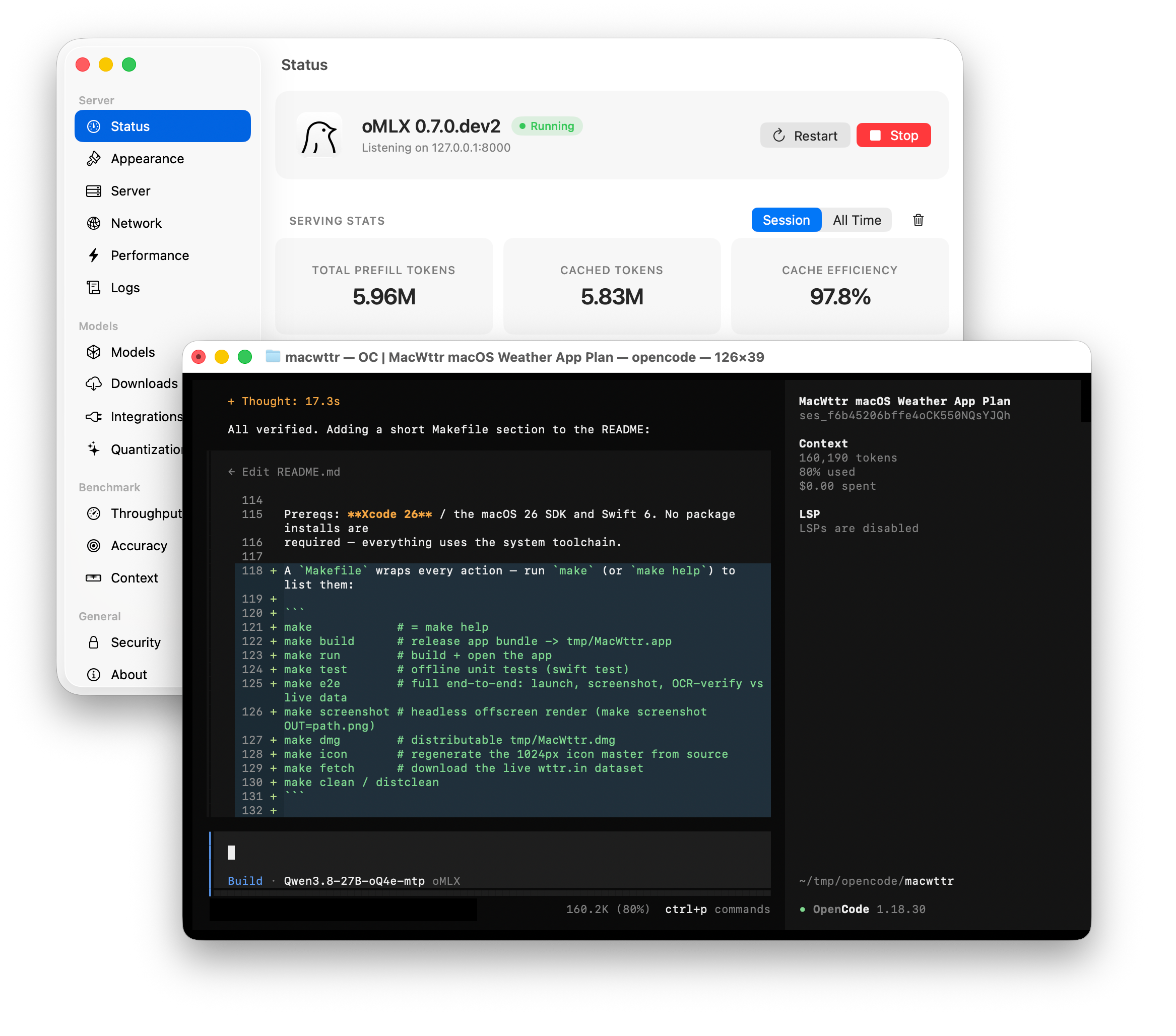
Large Language Models which are small enough that they can be run on a local computer are getting better at an incredible pace. Qwen3.8 27B is a prime example: Despite being orders of magnitude smaller than other frontier models, it performs almost as well in coding tasks. Macs are uniquely suited to run these models as their uniform memory architecture does not distinguish between GPU-accessible VRAM and CPU-accessible RAM, instead there is just one uniform memory space. On a 48 GB Mac model, almost all of this memory can be used to hold and “execute” an LLM.
This article is a brief guide to set up oMLX as a local LLM runtime and connect it to a Coding Agent like OpenCode.
What you need
- Mac with an Apple Silicon chip
- The more RAM, the better.
24GB is hardly usable, 32GB RAM is decent, 48GB and above is fun - macOS 15+ (Sequoia)
- >50 GB of free disk space for LLMs and cache
Why oMLX?
From the rapidly growing list of Mac inference tools (Ollama, LM Studio, Unsloth Desktop, …), I keep coming back to oMLX: oMLX is 100% optimized for Apple hardware and software and implements a clever caching scheme which uses the SSD to store the context KV-cache – that is basically the pre-processed prompt history – so that in the next turn of a long conversation or agentic workflow, only the new part has to be processed by the LLM, resulting in greatly improved performance. As agentic workflows easily contain hundreds of tool calls and turns, efficient context caching is essential. This is where oMLX shines.
Installation
Download the latest oMLX release from GitHub and move the application from the downloaded package to /Applications. Alternatively, you can install using brew:
brew tap jundot/omlx https://github.com/jundot/omlx
brew install jundot/omlx/omlx
Once you run oMLX, you should see its bird icon sitting in the macOS menu bar.
Admin interface
Open the web-administration frontend by clicking the menu bar item and selecting the respective option. oMLX also has a non-web frontend (Settings item from the menu), but that is not as mature and versatile as the Web frontend yet.
Global Settings
Open the Settings -> Global Settings tab at the top.
- Define an API Key which is used both for protecting access to the administrative front-end and connecting API clients. If you don’t want both to use the same key, you can add additional keys which only get API access.
- Disable Concurrency: Unless you have Max or Ultra processor variant, reducing concurrency improves performance. Reduce
Max Concurrent Requeststo1and disableChunked PrefillandPrioritize Decoding During Prefill. - Memory guard: The more memory the inference process can use, the more reliable it will be and the longer the maximum context window length can be. For an inference-only server, this might be a custom “total memory minus 4GB” setting. For a workstation, the “Balanced” preset is a better choice.
- Persist the Metal Memory Limit: To allow the Metal GPU API to use the maximum amount of memory, create the following file and set the
iogpu.wired_limit_mbvalue to your computer’s total memory minus around 4GB. This example is for a 48GB machine:
sudo tee /Library/LaunchDaemons/local.iogpu.wired-limit.plist <<'EOF'
<?xml version="1.0" encoding="UTF-8"?>
<!DOCTYPE plist PUBLIC "-//Apple//DTD PLIST 1.0//EN" "http://www.apple.com/DTDs/PropertyList-1.0.dtd">
<plist version="1.0">
<dict>
    <key>Label</key>
    <string>local.iogpu.wired-limit</string>
    <key>ProgramArguments</key>
    <array>
        <string>/usr/sbin/sysctl</string>
        <string>-w</string>
        <string>iogpu.wired_limit_mb=45000</string>
    </array>
    <key>RunAtLoad</key>
    <true/>
    <key>StandardOutPath</key>
    <string>/var/log/iogpu-wired-limit.log</string>
    <key>StandardErrorPath</key>
    <string>/var/log/iogpu-wired-limit.log</string>
</dict>
</plist>
EOF
sudo launchctl bootstrap system /Library/LaunchDaemons/local.iogpu.wired-limit.plist
sudo sysctl iogpu.wired_limit_mb
In the oMLX Global Settings interface, do not forget to “Save Settings” and “Restart Server” so all settings are applied.
Model Download
From the menu at the top, select Model -> Downloader. You can spend a lot of time on this screen finding and downloading models from HuggingFace for experimenting. For good performance, you probably want to use models with a Multi Token Prediction (MTP) head. These typically have “mtp” in their name.
scottlowry/Qwen3.8-27B-oQ4e-mtp is a good one.
Model Settings
Go to Settings -> Model Settings and click the gear icon next to your downloaded model.
The optimal model settings for you may be different from what is best for me. Take the following proposals as a starting point and optimize later.
- Load the Preset for the model: Model providers usually offer guidance as part of the model card what settings are optimal for their model. However, oMLX ships with good presets: Click “Preset” and select the model type, e.g., “qwen3.5/6(r, code)”. This one also works well for Qwen3.8.
- CTX Window: Set a limit your machine can tolerate. This value should be as high as possible to minimize compactions in the coding agent. Finding the proper value requires experimentation or using the Bench -> Context benchmark. Proposal: Start with 80000 for a 32GB machine, 120000 for a 48GB machine. Above that, set it to the model’s limits, e.g., 262144 for Qwen3.8 27B.
- Advanced Settings -> Enable Thinking Budget: Qwen3.8 27B produces a massive amount of thinking tokens and sometimes gets caught in thinking loops. Using this setting, you can limit that. An 8000 token limit has worked well for me.
- Advanced Settings -> Lightning MTP: Enable this. Multi Token Prediction accelerates decoding without quality loss. There is no reason not to use it.
- Run your Coding Agent: On the Dashboard tab of the web interface you will find command line shortcuts for several different applications.
If you want to configure OpenCode manually, here is a sample~/.config/opencode/opencode.json(be sure to enter your own configured API Key and model context limit):
{
  "$schema": "https://opencode.ai/config.json",
  "share": "disabled",
  "disabled_providers": ["opencode"],
  "provider": {
    "oMLX": {
      "npm": "@ai-sdk/openai-compatible",
      "name": "oMLX",
      "options": {
        "baseURL": "http://127.0.0.1:8000/v1",
        "apiKey": "1234",
        "setCacheKey": true
      },
      "models": {
        "scottlowry/Qwen3.8-27B-oQ4e-mtp": {
          "name": "Qwen3.8-27B-oQ4e-mtp",
          "modalities": {
            "input": [
              "text",
              "image"
            ],
            "output": [
              "text"
            ]
          },
          "attachment": true,
          "limit": {
            "context": 120000,
            "output": 120000
          }
        }
      }
    }
  }
}